Whoer.net IP: 6 Easy Steps to Fix Leaks and Improve Accuracy
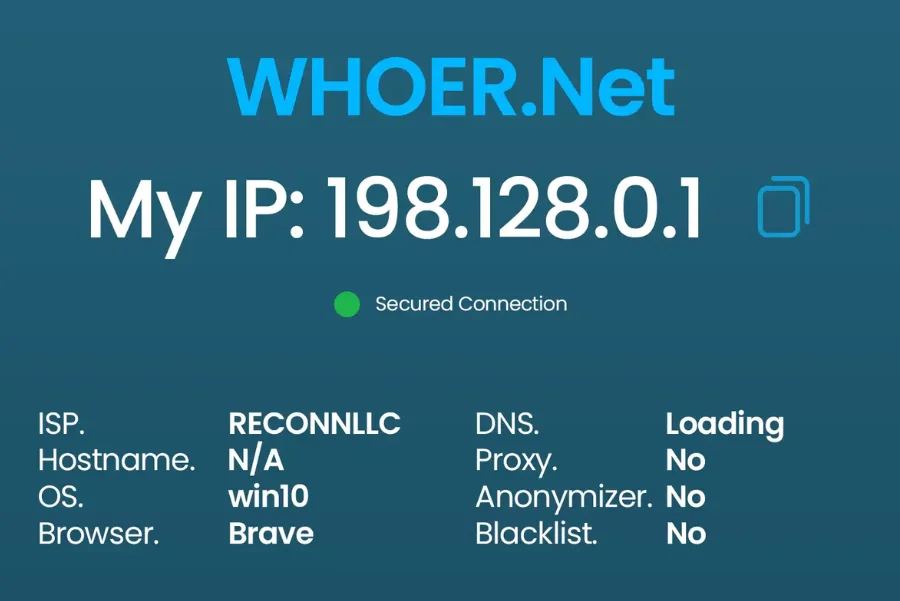
Whoer.net IP is a simple online tool that shows how your internet connection looks to websites. The moment you open the page, it starts working. You don’t need to click anything or enter details. It instantly detects your public IP address and displays it on the screen.
What makes this tool interesting is how much it shows right away. You see your IP, your country, and your internet provider within seconds. It also checks if you are using a VPN or proxy. This gives you a quick snapshot of your online identity without any setup.
Most basic IP checkers only show a number and maybe a country. Whoer.net IP goes further. It tries to explain how “normal” or “suspicious” your connection looks. This is useful if you care about privacy or want to test your setup.
It feels more like a quick health check for your internet connection. Instead of guessing what websites see, you get a clear answer in one place.
Here’s what usually appears instantly when you open the tool:
- Your public IP address
- Your detected country and city
- Your ISP (internet provider)
- Browser and operating system
- VPN or proxy status
- Basic anonymity level
What Your IP Address Reveals (In Plain English)
When you visit any website, your IP address is one of the first things it sees. Many people think it’s just a random number, but it actually reveals more than expected.
Your IP, location, and ISP
Your IP address tells websites where your connection is coming from. It usually shows your country and sometimes your city. This location is not exact, but it is close enough for most services.
It also shows your ISP. This is the company providing your internet, like your home broadband or mobile network. Websites use this to understand if you are a regular user, a data center, or using a proxy.
For example, if your IP shows a hosting company instead of a home ISP, some websites may treat your traffic as suspicious.
Browser and device details websites can see
Your IP is just one part of the picture. Websites can also see your browser, device type, and operating system. This includes things like:
- Chrome or Firefox browser
- Windows, Android, or iPhone
- Language and time zone
These details are collected automatically through your browser. You don’t need to share them manually. When combined, this data creates a rough profile of you. This is often called a browser fingerprint.
Why this information matters in real life
This data is used for many everyday tasks. Some are helpful, while others may feel intrusive.
For example:
- Websites show content based on your location
- Streaming platforms block certain regions
- Banks check your IP to prevent fraud
- Online stores adjust prices based on location
At the same time, this data can also be used to track you. Even if your IP changes, your browser details may still identify you.
Here’s a simple breakdown:
| Data Type | What It Shows | Why It Matters |
|---|---|---|
| IP Address | Your network identity | Used to identify your connection |
| Location | Country, city (approx) | Used for content and restrictions |
| ISP | Your internet provider | Helps detect proxies or VPNs |
| Browser Info | Device and software | Used for tracking and fingerprinting |
Understanding the “Anonymity Score” and IP Leak Warnings
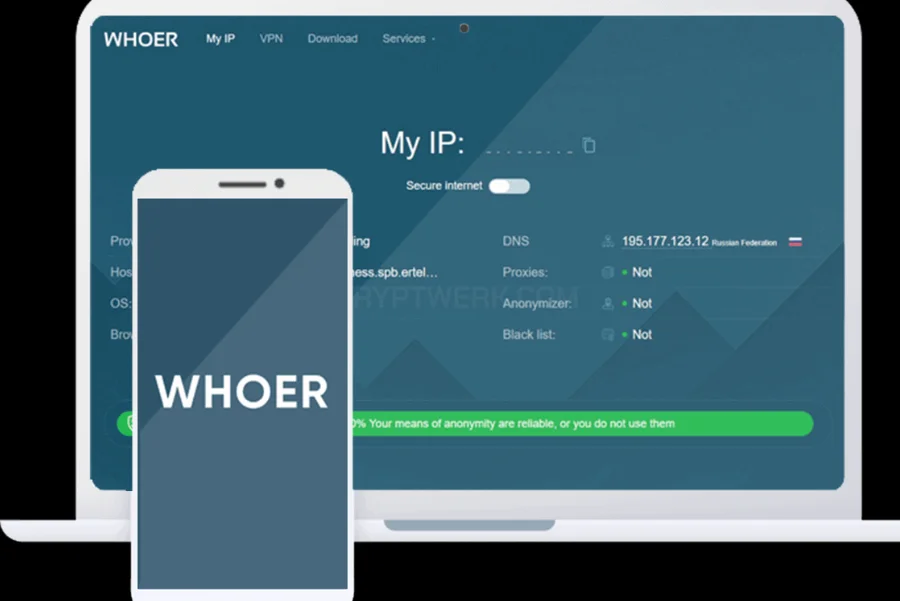
One of the most unique parts of Whoer.net IP is the anonymity score. This is shown as a percentage. It tries to tell how consistent and “natural” your setup looks.
The idea is simple. A normal user has matching details. For example, their IP, time zone, and language all align. When something does not match, it looks unusual.
What the percentage score actually means
The score is based on different checks. Each mismatch reduces your total percentage. A higher score means your setup looks more consistent.
For example:
- 90–100% → Looks normal
- 60–80% → Some issues detected
- Below 50% → Many mismatches
It does not mean you are safe or unsafe. It just shows how your setup appears to websites.
Common issues (DNS mismatch, time zone, language)
Many people see a lower score and get confused. The reason is usually small mismatches in settings.
Common issues include:
- DNS mismatch – Your DNS server is in another country
- Time zone mismatch – Your device time doesn’t match your IP location
- Language mismatch – Your browser language differs from your IP region
These issues often happen when using a VPN or proxy.
How small mismatches make you easier to track
Even small differences can stand out. Imagine your IP shows Germany, but your time zone is Pakistan. This creates a pattern that looks unusual. Websites use these patterns to detect bots, VPN users, or fake accounts. The more mismatches you have, the easier it is to flag your connection.
Here’s a quick example:
| Setting | Expected Match | Mismatch Example |
|---|---|---|
| IP Location | Germany | Germany |
| Time Zone | Germany | Pakistan |
| Language | German | English |
In this case, the setup looks inconsistent. That’s why the anonymity score drops. Understanding this helps you fix issues step by step. Instead of guessing, you can see exactly what needs adjustment.
Key Features Inside Whoer.net IP
When you scroll past the main IP section, Whoer.net IP starts showing deeper checks. These are not just random stats. Each one answers a simple question: “Can websites figure out more about you than you think?”
The reason this matters is simple. Many people think changing their IP is enough. But your connection has many small parts. If one part leaks, your privacy breaks. These features help you spot those weak points quickly.
VPN and proxy detection
This section checks if your connection looks like it’s coming from a VPN or proxy. Notice the word “looks.” It doesn’t ask you. It judges based on patterns. For example, many VPNs use known server IP ranges. Websites keep track of these. So even if your IP is hidden, it may still be recognized as a VPN.
If Whoer.net says:
- Proxy: Yes → your connection looks masked
- Anonymizer: Yes → likely a VPN or hosting IP
This matters when:
- You want to access restricted content
- You are managing accounts
- You want to avoid detection
A common mistake is thinking “VPN ON = invisible.” That’s not always true.
DNS and WebRTC leak tests
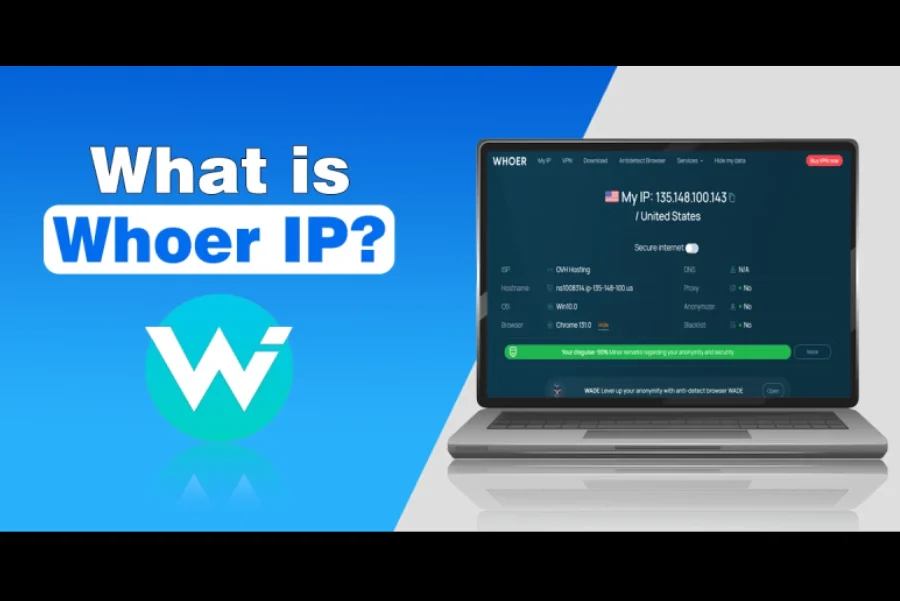
This is where many people get surprised. You might think your IP is hidden, but leaks can still expose you. DNS leak happens when your browser uses your real network to resolve websites. So even if your IP is from another country, your DNS still shows your real location. WebRTC leak is more hidden. It’s a browser feature. It can reveal your real IP even when using a VPN. This usually happens in browsers like Chrome or Edge.
Real example
You connect to a UK VPN, but:
- DNS shows Pakistan
- WebRTC shows your real IP
Now your setup looks inconsistent. Websites can detect that.
Browser fingerprint check
This is one of the most important parts, but many ignore it.
Your browser shares small details:
- Screen size
- Installed fonts
- System type
- Extensions
Each detail seems harmless. But combined, they create a unique “fingerprint.”
Think of it like this: Even if 100 people use the same VPN, your browser setup may still be unique.
So even after changing your IP, you can still be recognized. Whoer.net IP shows this so you understand:
- How unique your setup is
- Whether you stand out or blend in
IP details and Whois data
This section is more about the background of your IP. It tells you who owns it and how it’s classified.
For example:
- Is it from a home ISP?
- A hosting company?
- A data center?
This matters because websites treat these differently. A home IP looks normal. A data center IP often gets blocked.
Whois data helps you verify:
- If your VPN server is real or suspicious
- If your proxy is clean or flagged
How to Use Whoer.net IP Step by Step
Using Whoer.net IP is simple, but many people rush through it and miss useful details. The goal is not just to see your IP. It’s to understand how your connection appears to websites. When you open the page, it immediately shows your IP address along with location, ISP, and other technical signals.
To get meaningful results, you should read the page in a logical order. Start with the basics at the top, then move downward to more detailed checks like anonymity score, DNS, and browser data. This helps you avoid confusion because the page contains many small indicators that work together.
Think of it like checking your car dashboard. You don’t look at every light at once. You check the important ones first, then inspect details if something looks off.
What to check first on the page
When the page loads, focus on the top section first. This area shows your IP address, location, and internet provider. These are the same details websites usually detect when you visit them.
If you are using a VPN, check if the location matches your selected server. If you are not using a VPN, confirm that your location looks correct. Also, look at the ISP name to see whether it matches your expected network. If anything seems unusual, that’s your first signal to investigate further.
How to read results without confusion
The page shows many technical labels, but you don’t need to understand everything. Instead, focus on patterns. Ask simple questions as you go through the results.
For example:
- Does my IP location match my VPN?
- Are there any warnings or leak indicators?
- Is my anonymity score high or low?
The anonymity score is a quick summary of how consistent your setup looks. A low score usually means mismatches between your IP, DNS, time zone, or browser settings.
Here’s a simple way to interpret results:
| Result Area | What to Look For | What It Means |
|---|---|---|
| IP Location | Matches expected country | Setup is consistent |
| ISP | Known provider or VPN server | Normal or flagged network |
| Anonymity Score | High vs low percentage | Overall consistency |
| DNS Results | Match with VPN or not | Possible leak issue |
| WebRTC | Shows real IP or not | Browser leak detection |
What to do after you see your results
Once you review your results, the next step is action. If everything looks correct, you don’t need to change anything. But if you notice mismatches or warnings, you should fix them one by one.
For example, if a DNS leak appears, you may need to adjust your VPN settings or change your DNS provider. If WebRTC shows your real IP, you can disable it in your browser or use privacy settings. After making changes, refresh the page and test again.
A simple step-by-step approach works best:
- Open Whoer.net IP
- Check IP and location
- Review anonymity score
- Scan for DNS or WebRTC leaks
- Fix any issues
- Recheck results
When Whoer.net IP Is Actually Useful (Real Scenarios)
Whoer.net IP becomes truly useful when something feels off with your connection. It is not just a checker. It helps you understand real situations where your privacy or access is affected. Many people use it when working with VPNs, proxies, or when facing website restrictions.
In everyday use, it helps you confirm whether your setup behaves as expected. Instead of guessing why a site is blocked or why your location appears different, you can quickly test your connection and see the cause.
Checking if your VPN is working
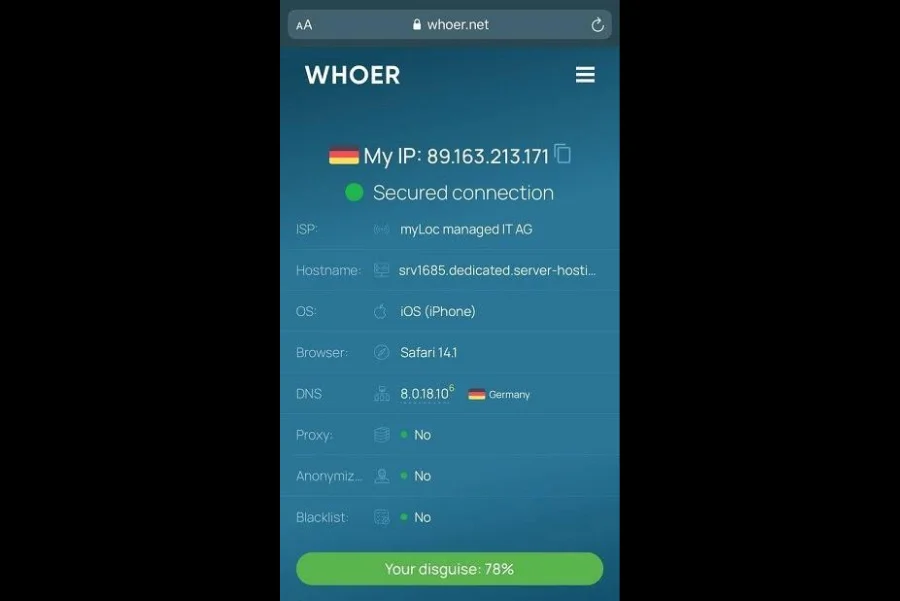
One of the most common uses is verifying a VPN connection. You may connect to a VPN and assume everything is secure. But sometimes the VPN may not fully mask your IP or may leak data.
Whoer.net IP helps you confirm:
- Your IP location matches the VPN server
- No DNS or WebRTC leaks are present
- Your anonymity score reflects a consistent setup
Testing a proxy before using it
Proxies are often used for tasks like managing accounts or accessing restricted services. But not all proxies are reliable. Some may leak your real IP or look suspicious to websites.
Before using a proxy in a real task, you can test it on Whoer.net IP. This helps you check:
- Whether the proxy hides your real IP
- If the IP appears as a data center or residential
- Whether DNS or browser leaks are present
Troubleshooting blocked websites
Sometimes websites block access without giving a clear reason. This can happen due to IP reputation, VPN detection, or unusual connection patterns.
Whoer.net IP helps you identify possible causes. For example, if your IP belongs to a known VPN or hosting provider, some websites may restrict it. If your setup shows mismatched signals, that can also trigger blocks.
By checking your IP details, you can understand whether the issue is with your network, your VPN, or the website itself.
Understanding why a site flags your connection
Websites often analyze more than just your IP. They look at patterns like location consistency, browser data, and network type. If these signals don’t match, your connection may be flagged.
Whoer.net IP shows these signals in one place. This helps you see why a site might treat your connection as unusual.
Common reasons include:
- IP location differs from time zone
- DNS servers are in another region
- Browser language does not match IP country
- IP belongs to a known proxy or VPN
Understanding these patterns helps you adjust your setup and reduce flags.
Whoer.net IP vs Basic IP Checker Tools
Basic IP checker tools are designed for quick checks. They show your IP address and maybe your approximate location. That’s useful if you only need a simple answer. But they don’t explain how your connection behaves or whether there are hidden issues.
Whoer.net IP goes deeper by analyzing multiple signals together. It doesn’t just show your IP. It evaluates DNS, WebRTC, browser fingerprint, and VPN detection. This gives you a more complete view of your connection.
In real use, this difference matters when you care about privacy, testing VPNs, or troubleshooting connection problems. A basic tool might tell you your IP has changed, but Whoer.net IP can reveal leaks or inconsistencies that basic tools miss.
Here’s a clear comparison:
| Feature | Basic IP Tools | Whoer.net IP |
|---|---|---|
| Shows IP address | Yes | Yes |
| Location info | Basic (country only) | Detailed (city, ISP) |
| VPN detection | No | Yes |
| DNS leak testing | No | Yes |
| WebRTC leak check | No | Yes |
| Browser fingerprint data | No | Yes |
Basic IP tools are enough for quick checks. But when you want to understand how visible you are online or confirm your privacy setup, Whoer.net IP gives more detailed and practical insight.
Common Mistakes People Make When Using Whoer.net IP
Many people open Whoer.net IP and assume they understand their results right away. In reality, small misunderstandings can lead to wrong conclusions. The tool shows accurate data, but reading it correctly is where most users struggle.
One common mistake is thinking the tool hides your IP or improves privacy. It does neither. It only displays what is already visible to websites. If your IP is exposed, it will show it clearly. You still need tools like a VPN or proxy if your goal is privacy.
Another issue is misreading location results. IP-based location is not exact. It can show your ISP’s registered location instead of your real city. This can confuse users who expect pinpoint accuracy. The location shown is an estimate, not a GPS-level result.
A third mistake is ignoring browser fingerprint data. Many users focus only on IP and forget that browsers share additional details. Even if your IP changes, your browser setup can still identify you across sessions. This is often overlooked but important for privacy.
Lastly, people often forget to recheck after making changes. They may enable a VPN, adjust DNS, or change settings, but never verify if the fix worked. Without rechecking, you won’t know if your changes actually improved your setup.
Here’s a quick summary of these mistakes:
| Mistake | What Happens | Better Approach |
|---|---|---|
| Thinking it hides your IP | False sense of privacy | Use VPN/proxy for protection |
| Misreading location | Confusion about results | Treat location as approximate |
| Ignoring fingerprint | Still trackable | Review browser data too |
| Not rechecking | Issues remain unnoticed | Test again after changes |
Simple Ways to Improve Your Privacy After Checking Your IP
After reviewing your Whoer.net IP results, the next step is improving your setup. Most privacy issues come from small leaks or mismatched settings rather than complex problems. Fixing these one by one can significantly improve how your connection appears.
A common starting point is fixing DNS and WebRTC leaks. Adjusting your VPN DNS settings or disabling WebRTC in your browser can help reduce these risks. Once fixed, your connection becomes more consistent.
Another important step is matching your timezone and language with your IP location. If your IP shows one country but your device settings show another, it creates inconsistency. Aligning these settings helps your setup look more natural to websites and reduces flags.
Using a reliable VPN also matters. Not all VPNs perform the same. Some may leak data or use shared IPs that are already flagged. Choosing a trusted provider and testing different servers can improve results. If one server shows issues, switching to another often helps.
Finally, keep your browser setup simple and consistent. Too many extensions, unusual configurations, or rare fonts can make your browser fingerprint unique. A more standard setup blends in better with typical users and reduces tracking signals.
Here are practical steps you can follow:
| Action | What It Fixes | Why It Helps |
|---|---|---|
| Fix DNS leaks | Real location exposure | Keeps requests private |
| Disable WebRTC | Hidden IP leaks | Prevents browser exposure |
| Match timezone | Location mismatch | Improves consistency |
| Align language | Regional mismatch | Reduces anomalies |
| Use reliable VPN | Weak protection | Improves anonymity |
| Keep browser simple | Unique fingerprint | Reduces tracking |
Improving privacy is not about one major change. It’s about small adjustments that work together. When your IP, browser, and system settings align, your connection looks more consistent and less detectable.
Final Words
Whoer.net IP is a practical tool that gives you a clear view of how your internet connection appears to websites. It shows more than just your IP address. It also reveals potential leaks, browser details, and consistency issues that affect your online visibility.
It is especially useful when you are using a VPN, testing a proxy, or facing access issues on certain websites. Instead of guessing why something is not working, you can quickly check your setup and identify possible causes.
At the same time, it’s important to remember that this tool does not protect your privacy. It only shows your current state. If your goal is to stay private or hide your identity, you still need tools like VPNs, secure browsers, and proper configurations.
For everyday use, you don’t need to rely on it constantly. But it becomes helpful whenever you change your network, switch VPN servers, or notice unusual behavior in your connection.
In simple terms, Whoer.net IP works best as a quick check tool. It helps you understand what websites can see and gives you enough information to fix common issues without confusion.
At Arcadia Movers, we’re here to make your moving experience easier, smarter, and stress-free—every step of the way.